Free · Private · Works right on your Mac
Describe it.
Dig it up.
Find any photo, video, recording or document on your Mac just by describing it, in your own words. DigUp takes you straight to the right page or moment.
Free · Version 0.6.1 · 8.7 MB
For Macs with Apple chips (M1 or newer) running macOS 14 Sonoma or later.
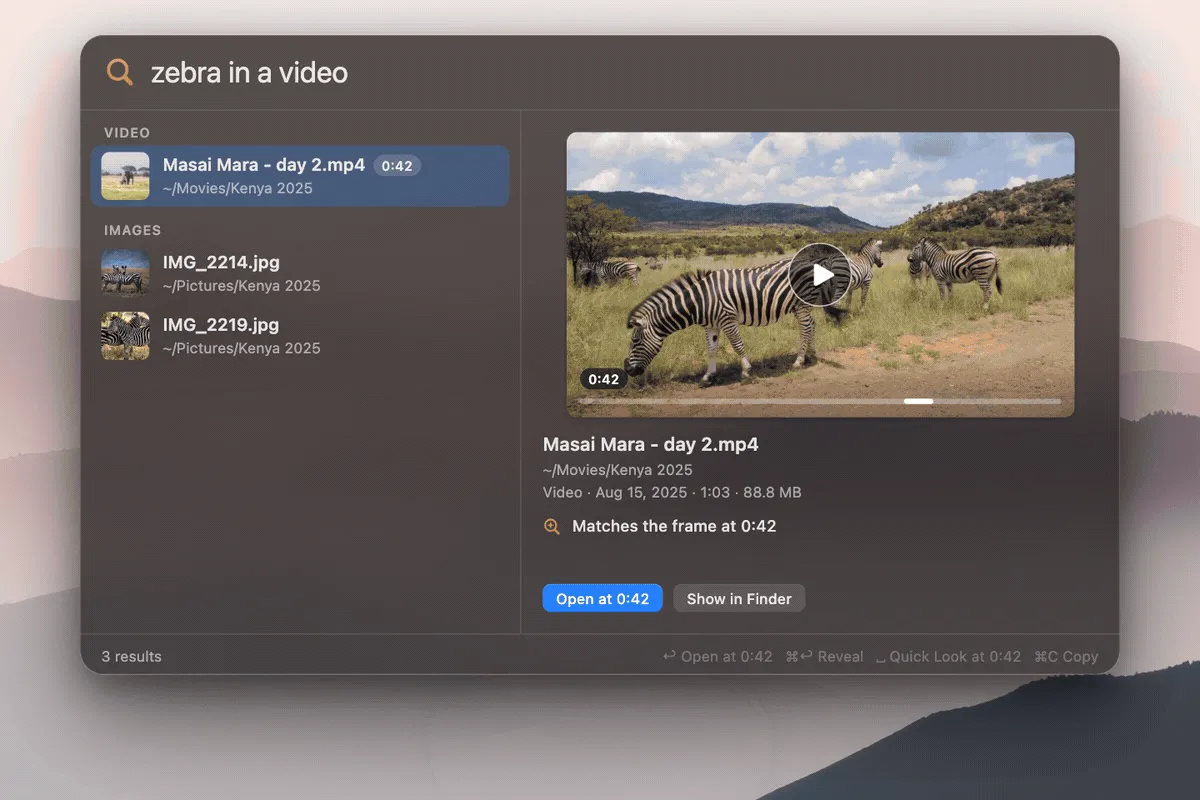
Press ⇧⌘Space from any app, type what you remember, and there it is.
No more digging through folders.
Don’t remember the file name? You don’t need to. Just type what you remember about it.
- zebra in a videoVideoMasai Mara - day 2.mp40:42~/Movies/Kenya 2025
A moment in a video
Opens the clip right where the zebra shows up.
- where they talk about sleepAudioThe Long Run - Ep 14.mp37:55~/Music/Podcasts
A part of a podcast
Jumps to the minute where they talk about it.
- the clause about pets in the leaseDocumentsLease - 14 Elm Street.pdfp. 4…Assistance animals are not pets under this clause…
A line in a document
Shows the right page, with your words marked.
- a dog on the beachImagesIMG_4128.jpg~/Pictures/2025 Summer
A photo
Finds the picture by what’s in it, no tags needed.
- payment declined errorScreenshotsScreenshot 2026-09-14 at 10.32.png~/Desktop
A screenshot
Finds it by what’s on screen, including the text in it.
- সৈকতে একটা কুকুরVideoIMG_4141.MOV0:18~/Movies
In your language
Search in English, Bengali, Arabic or 100+ other languages.
Exact words work too: type an invoice number, an error code or a name and DigUp finds it, even inside a screenshot.
Ready in three steps.
No account, no sign-up. The first time you open DigUp, it downloads its AI model (865 MB, only once).
- 1
Install it
Download DigUp, open the file, and drag DigUp into your Applications folder.
- 2
Choose your folders
Pick the folders you want to search, like Pictures, Documents or Downloads. DigUp shows how long it needs to read them the first time.
- 3
Search
Press ⇧⌘Space from any app and describe what you’re looking for.
- ↩Open it
- SpaceQuick look
- ⌘↩Show in Finder
- ⌘CCopy the file
Your files stay on your Mac.
DigUp only goes online to download its AI model once, and to check for updates once a day (you can turn that off). Everything else happens on your Mac.
Nothing gets uploaded
DigUp reads and searches your files right on your Mac. They never go to a server.
No account, no tracking
Nothing to sign up for, and nothing about you or your files is sent anywhere.
Only what you choose
DigUp only looks in the folders you pick, and never changes, moves or deletes anything.
Private stuff stays private
It skips passwords, keys and other secret files, even inside the folders you choose.
Works with the files you already have.
Nothing to organize or tag. New files are ready to search a second or two after they arrive.
Photos and screenshots
Found by what they show, and by any text in them.
PDFs and documents
Word, text and PDF files, even scanned pages.
Podcasts and recordings
Found by what’s said, and opened at that moment.
Videos
Found by what you see or hear, at the right second.
Questions? Answers.
Is DigUp free?
Yes, completely free. No subscription, no ads, no account.
Which Macs does it work on?
Macs with Apple chips (M1, M2, M3, M4 or newer) running macOS 14 Sonoma or later. If your Mac has an Intel processor, DigUp won’t run on it. Windows and Linux versions are on the way.
Do my files get uploaded anywhere?
No. DigUp reads and searches your files on your Mac, and they never leave it. It only goes online to download its AI model once and to check for updates once a day, and that check sends nothing about your files.
Why does it download 865 MB when I first open it?
That’s the AI model that understands your photos, documents, recordings and videos. It downloads once, and you can choose your folders while it does. The app itself is small.
Will it slow down my Mac?
Only the first time, while it reads your folders. That takes a few minutes for a few hundred files, or up to an hour for a big Downloads folder. After that it only reads new files, which takes a second or two. It pauses in Low Power Mode, and you can tell it to wait until your Mac is charging.
How is this different from Spotlight?
Spotlight finds files by their name and the words in them. DigUp also finds them by what they show or say, so “dog on the beach” finds the photo, and it opens a video or recording at the right moment. You can use both.
Which languages can I search in?
More than 100. You can even search in one language and find a file written in another, like typing in English and finding a note written in Arabic.
Can it search code too?
Yes, if you turn it on in Settings for the folders you choose. Start your search with code: and describe what the code does, and DigUp opens it in your editor at the right line.
Why does macOS ask if DigUp can control QuickTime Player?
That’s how DigUp opens a video at the exact moment you searched for. macOS asks the first time it does this.
How do I uninstall it?
Quit DigUp, drag it from Applications to the Trash, and delete the folder ~/Library/Application Support/DigUp, which holds the AI model and the search index.
Stop searching. Start finding.
DigUp is free, private, and ready in a few minutes.
Version 0.6.1 · 8.7 MB · Macs with Apple chips, macOS 14 or later